Power Automate, is an useful online tool for creating automated workflows between apps and services to synchronize files, get notifications, and collect data within the Microsoft 365 application.
An automation can be quickly and easily created, only a basic understanding of Office 365 is required to a create basic automation
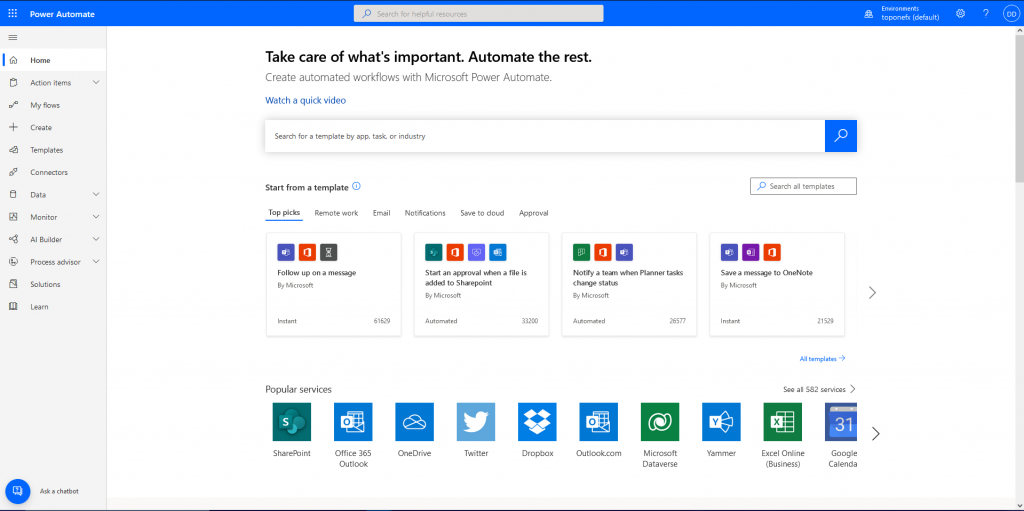
Power Automate Home page
Visit the Power Automate Website https://unitedkingdom.flow.microsoft.com/en-us/ and sign in with an Microsoft account. After that is done the Power Automate Home page will be displayed.
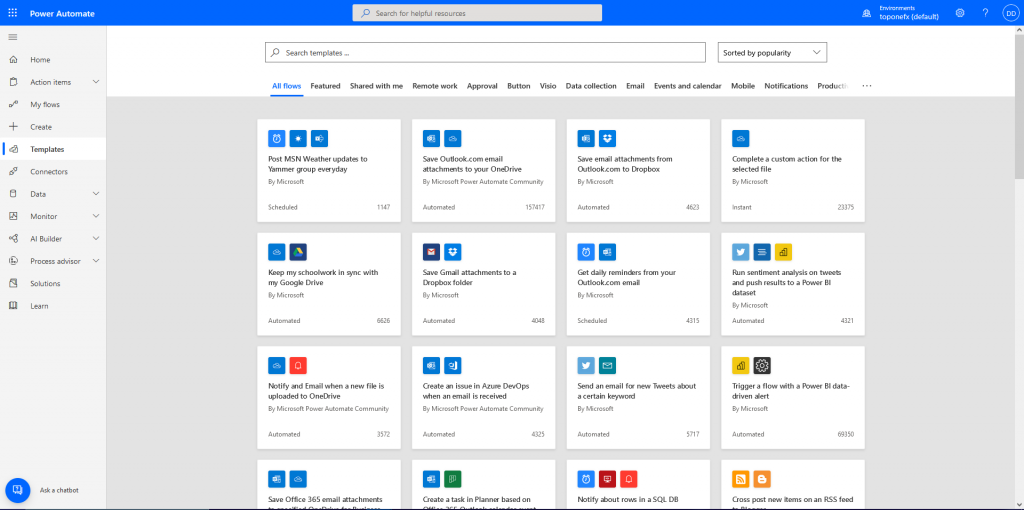
Templates page
A new workflow can be created from scratch if a specific workflow needs to be made or a existing template can be taken from the Templates page making the creating workflow process easier.
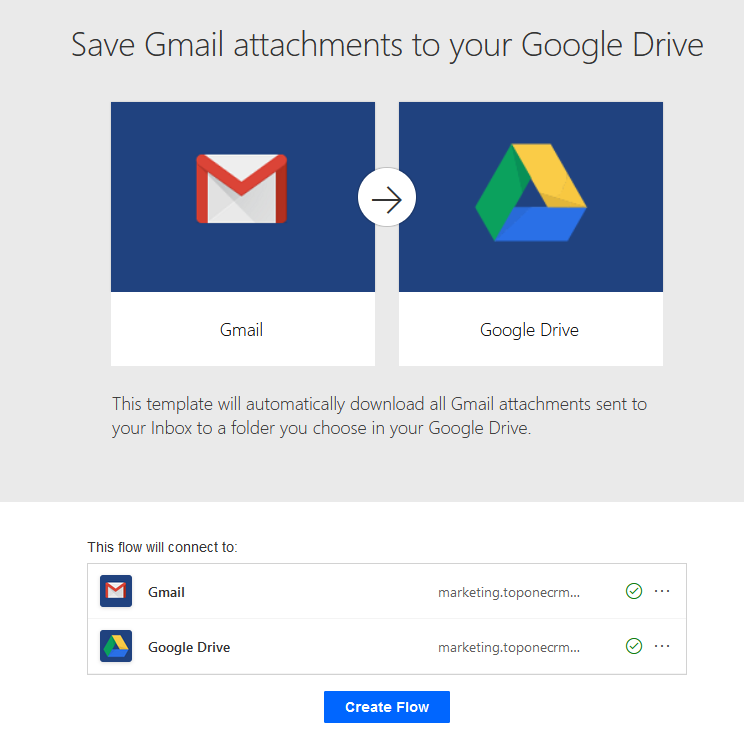
Save Gmail attachments to your Google Drive workflow template
This template will be used for demonstration. Any files attached to a email going to this Gmail account will be automatically saved to a Google Drive account. The user adds the email addresses of the Gmail and Google Drive accounts that the workflow will connect to for the automation to work.
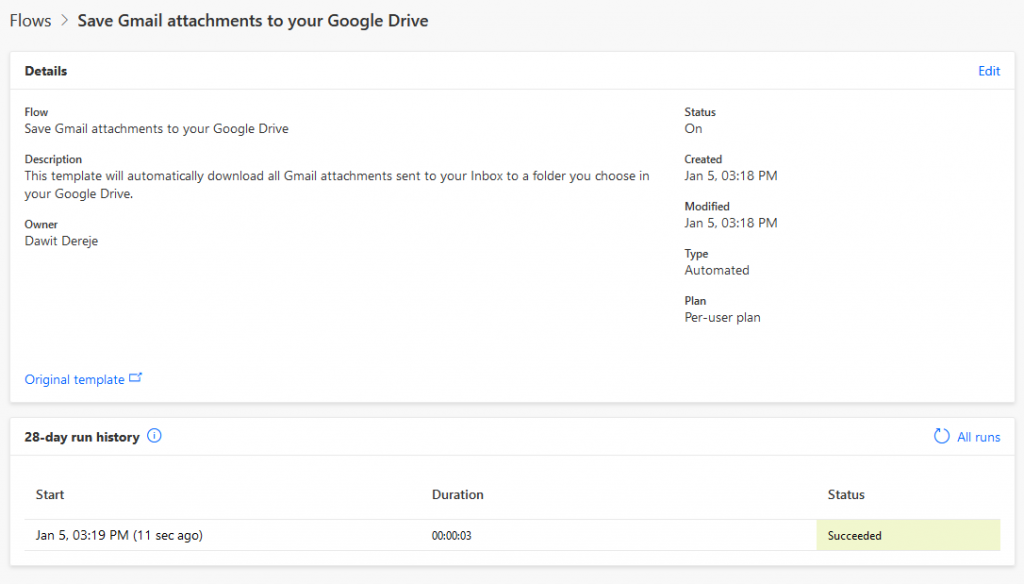
.Workflow details
When the flow is created the details of the workflow will be displayed showing information such as the title, description, who created the workflow, when the workflow is created and etc. A history of the workflow’s run are displayed at the bottom providing the results of each run showing whether they were successful or not.
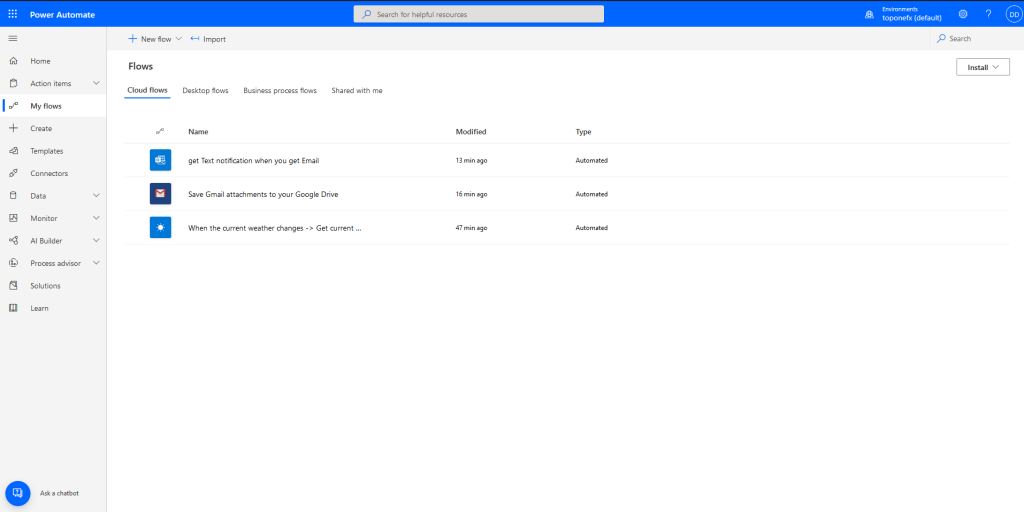
My Flows page
All workflows that the user has created is shown on the My Flows page.
In case someone hasn’t seen yet “Dynamics 365 Implementation Guide”. It is 706 pages book, but it is interesting and worth reading. Our top one part is about security and how Microsoft Dynamics 365 is protecting users.
Cypress is an end-to-end testing framework for web test automation. It enables us to write automated web tests in JavaScript.
Cypress is universal because it’s written in JavaScript and uses Node.js when running in browsers. It’s simple to set up and its fast when it comes to debugging, and if the tests fail, you will be provided with suggestions for how to fix the defect.
Write your first test
open up the IDE and add the code below
describe(‘My First Test’, () => {
it(‘Does not do much!’, () => {
expect(true).to.equal(true)
})
})
after you save the file, run it using the following command in your terminal
npx cypress run
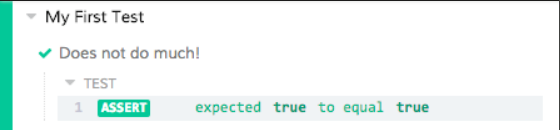
the cypress command log will pop up , click on the name of your file and you will see the following
Debugging using .debug( )
Cypress also exposes a shortcut for debugging commands, .debug().
it(‘let me debug like a fiend’, () => {
cy.visit(‘/my/page/path’)
cy.get(‘.selector-in-question’).debug()
})
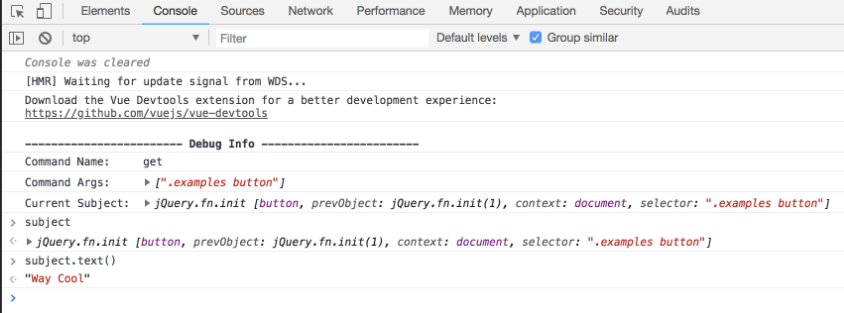
The current subject that is yielded by the cy.get() is exposed as the variable subject within your Developer Tools so that you can interact with it in the console.
Use .debug() to quickly inspect any (or many!) part(s) of your application during the test. You can attach it to any Cypress chain of commands to have a look at the system’s state at that moment.
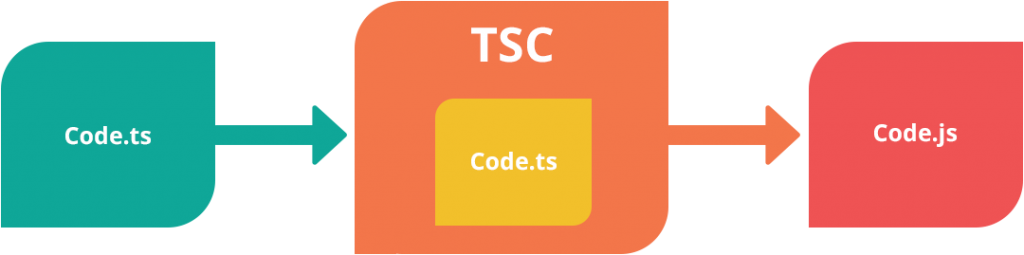
Typescript is a superset of JS. It’s a programming languge with additinal syntax. TypeScript builds on top of JavaScript. The following pictcure shows the relationship between the two.
First, you write the TypeScript code. Then, you compile the TypeScript code into plain JavaScript code using a TypeScript compiler(tsc).
TypeScript uses the JavaScript syntaxes and adds additional syntaxes for supporting data types. Note that Javascript is dynamically typed languge meaning if there is any error in the code, it’s caught at runtime and the program doesn’t terminate gracefully. Using typescript helps to identify errors at compile time.
why typescript?
typescript adds data-type feature which helps to identify error at compile time. Thus, it forces us to write robust, clean and less error-prone code. For example. let’s say we want to write a function that adds two numbers, num1 and num2. If we write this function in javascript and without any additional validation, we will get unwanted result(string concatination rather than addition). Look at the screenshots below for further illustration.
the screenshot below shows simple index.html page with two input filed and button to add the two numbers.
index.html page –> here we include script.js file
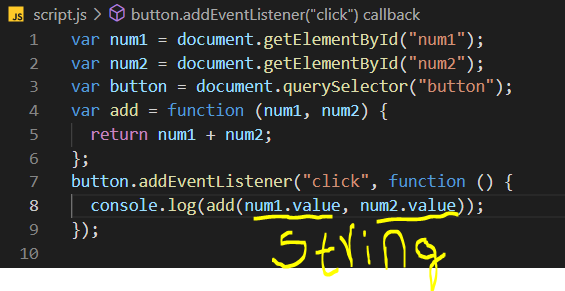
the screenshot below shows the script.js file where we define our add function.
script.js file (note this isn’t typescript file, this is plain javascript file)
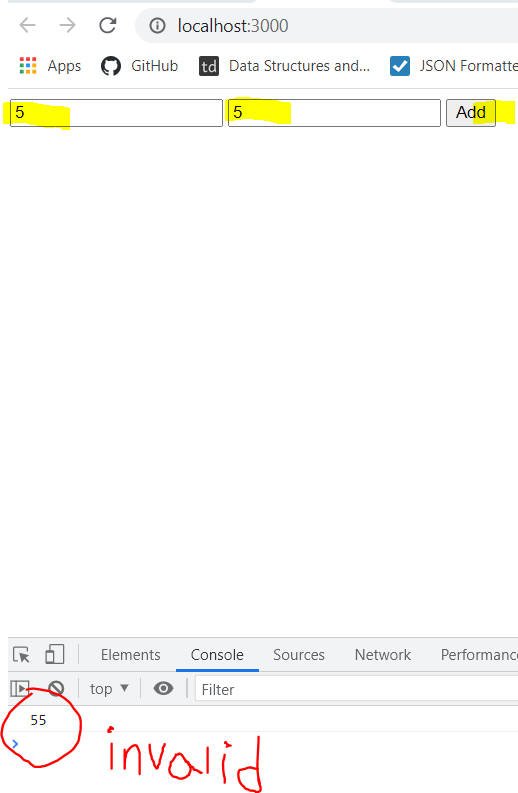
if we open index.html file and put some numbers in the input field, and press add button. we won’t get the exepected result in the console. Rather we get concatination of string values.
console output
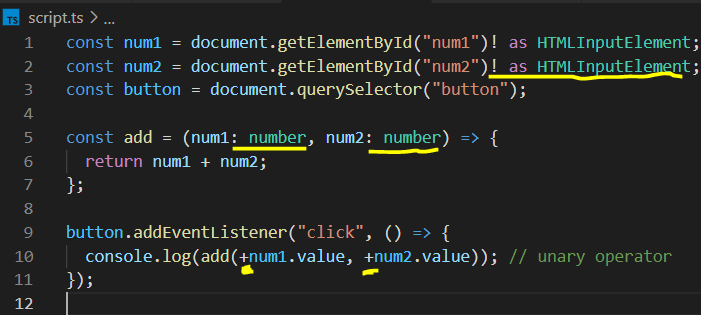
Now by using typescript we can write more robust code and enforce we are getting numbers insted of string values. Thus avoid runtime errors or unexpected results in our case. The screenshot below shows an example of typescript.
script.ts (this is typescript file with additinal syntax shown with yellow underlines)
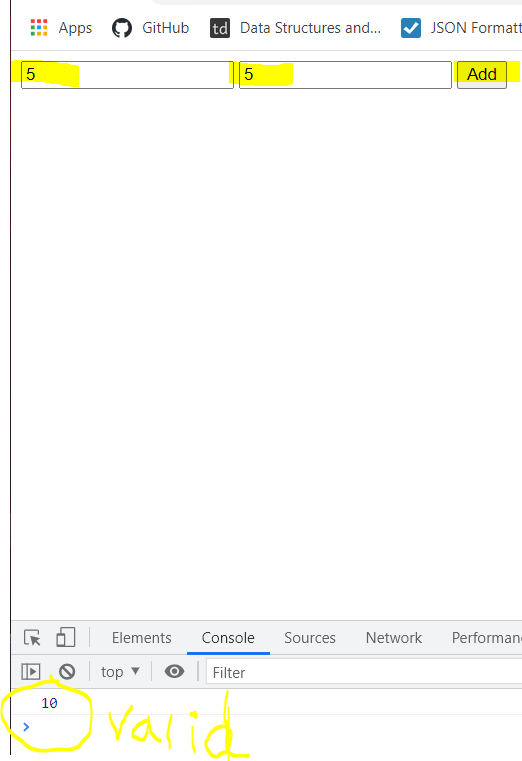
Now, we can compile this file by using typescript compiler(tsc) and run the command ‘tsc script.ts’. This command will compile our code and produce ‘script.js’ file. Below is the console output after compiling this code.
console output after running typescript
Thus using typescript we can write clean and more robust code.
Additional advantage of using typescript
Apart from writing more robust and less-error prone code, typescript has the following advantages
we can use next generation Javascript features and everyting we write compiles down to js code.
we can use features like interface and generics that helps during development.
It has rich configuration options
Disadvantage of using typescript
Although typescript provides lots of feature, one drawback is that neither broswer nor node can execute typescript file. That is why we have tsc tool (typescript compiler) to compile our code back to plain Javascript so that our browser can interpret it.
How to install it?
Inorder to start using typescript we need to install it using npm. Below is a command to install typescript globally.
They say ” Time is more valuable than money. You can get more money but you can not get more time.”
We at TopOne value BOTH your time and money which is why we are here to offer you TopOneTest. This service revolves around software and technique testing.
Outsource with us and accelerate your digital transformation. TopOne’s experienced QA & Testing teams deliver dream-team outcomes without the hassles of hiring testers.